Here’s a simple step-by-step guide to the Newly Created Database from Your Workstations:
How to Connect to the Newly Created Database from Your Workstations
- Run Connected Business Desktop (or Apps).
-
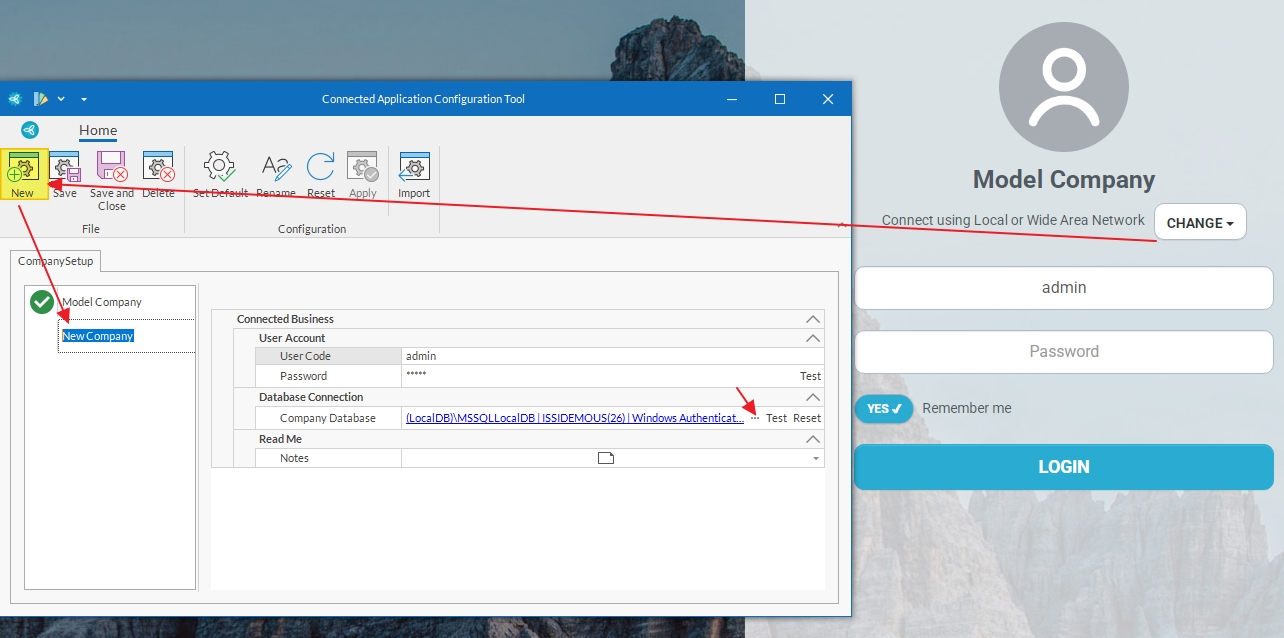
On the login screen, click Change to open the Configuration Tool.
-
Click New to create a new database connection.
-
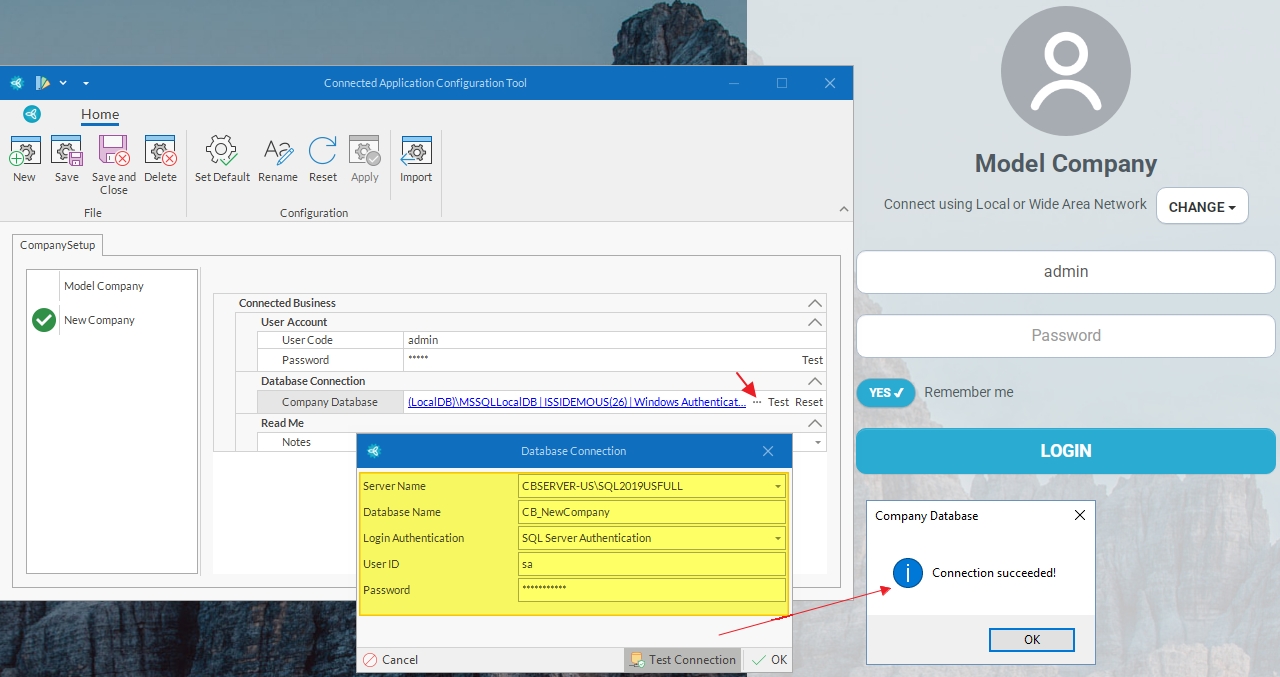
Enter the required database connection details:
-
SQL Server Name: (Enter your SQL Server name)
-
Database Name: (Enter the newly created database name, e.g.,
CB_NewCompany) -
SQL User ID: (Enter SQL username)
-
SQL Password: (Enter SQL password)
Note: Make sure the connection is successfully established before proceeding.
-
-
Click Test Connection to make sure the connection is successful.
-
Click Save to store the configuration.
-
Select the newly created connection from the list, then click OK.
-
Log in using the default credentials (or your assigned user account):
-
Username: admin
-
Password: admin
-