How to install Connected Business Enterprise (Server) Edition
Note: Please make sure Microsoft SQL Server Express or Developer Edition (Free) is installed beforehand.
You may download SQL Server Express 2019 from the link below:
Microsoft® SQL Server® 2019 Express
For the complete list of system requirements, please refer to:
Connected Business Software Requirements
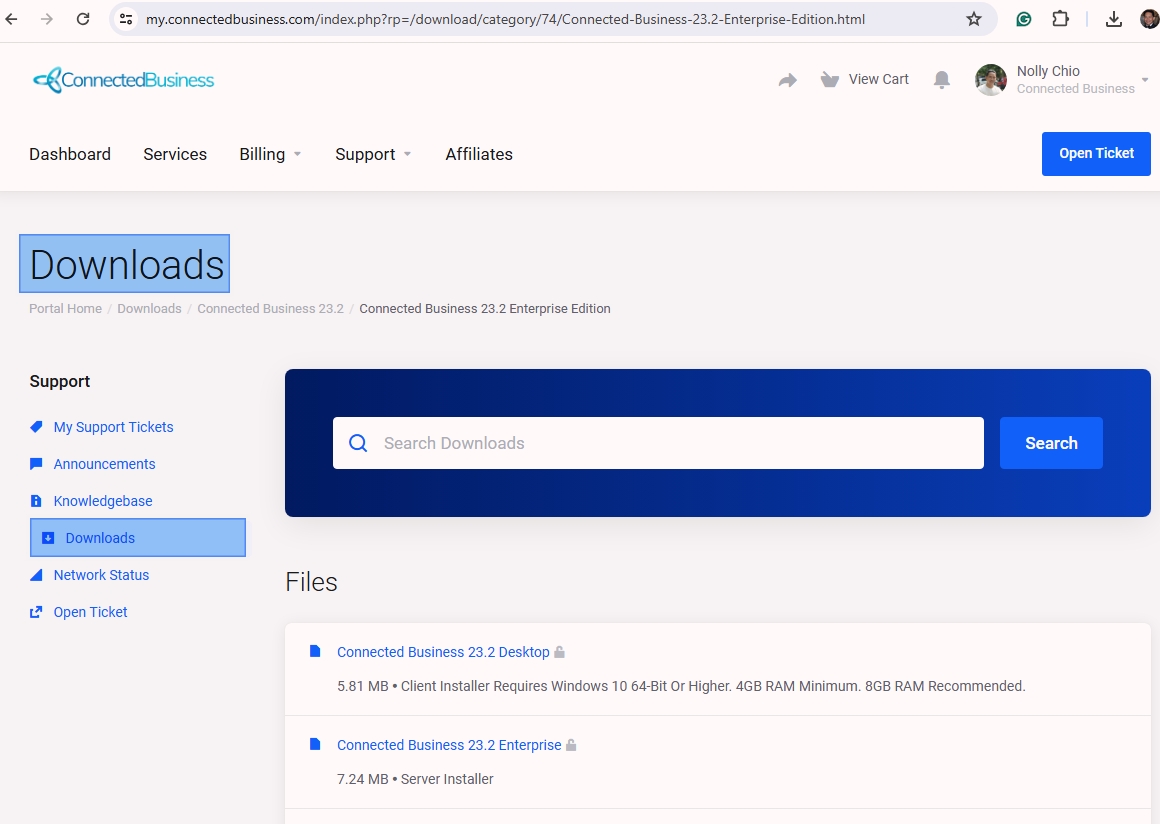
1. Download the Connected Business Enterprise Edition installer from the Support Portal → Downloads section.
You may also click on the download link and log in using your account to proceed with the download.
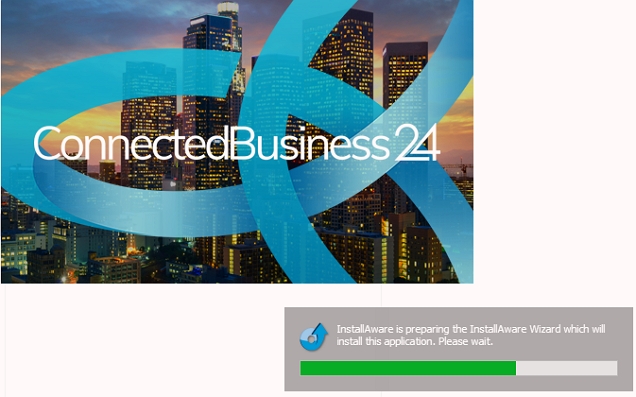
2. Once the download is complete, run the installer and follow the on-screen instructions.
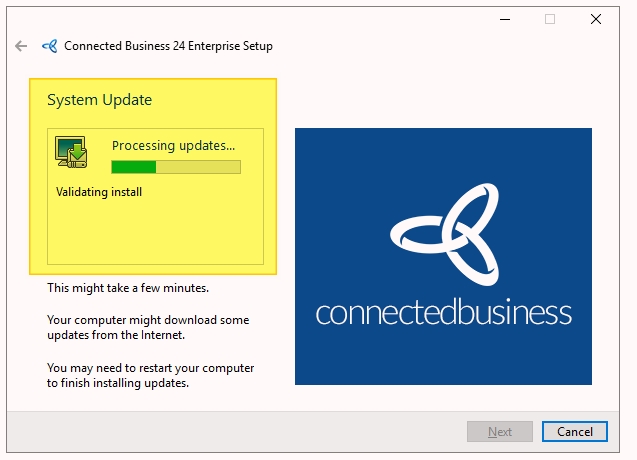
- The installer will check the needed requirements and perform a system update
- Installer downloading and automatically installing updates
- Continue the Installation after completing the system update
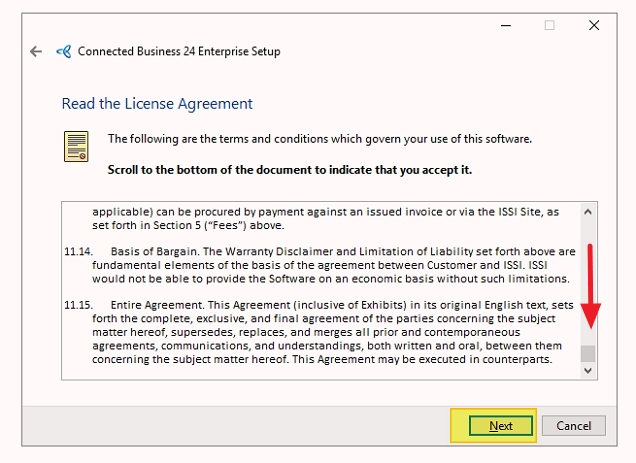
3. Scroll down to accept the License Agreement.
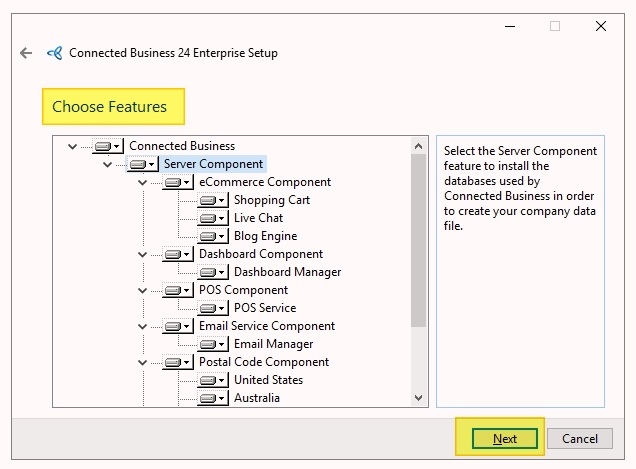
4. Select the Modules or Components that you want to install.
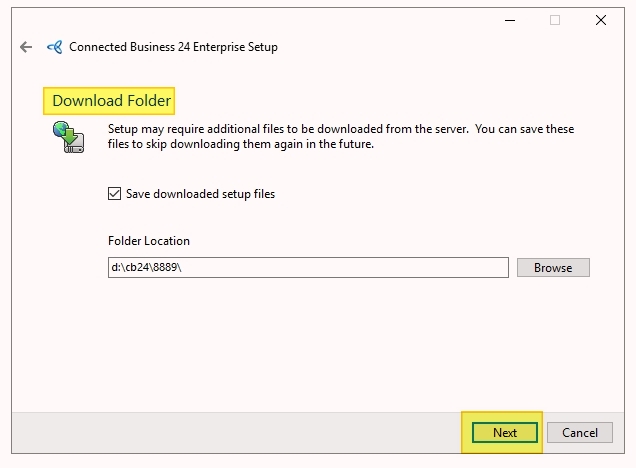
5. Check or uncheck to download the setup files
6. Select Use an existing installation of MS SQL Server since you already installed SQL before the Connected Business Enterprise Edition installation.

7. Enter or Select your MS SQL Server instance name in the dropdown.
- Windows or SQL Authentication


8. Select the website for creating the Virtual Directory for a Shopping Cart or eCommerce, POS, Live Chat, and eShopConnected.
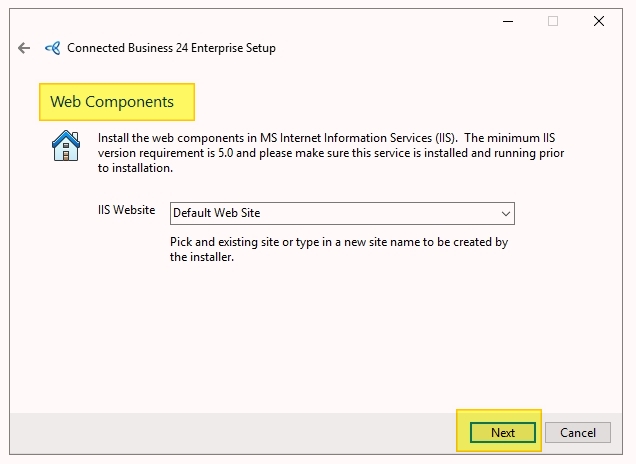
9. Enter the Directory or location where you want to install the Apps, you can leave the default location and click next to continue.
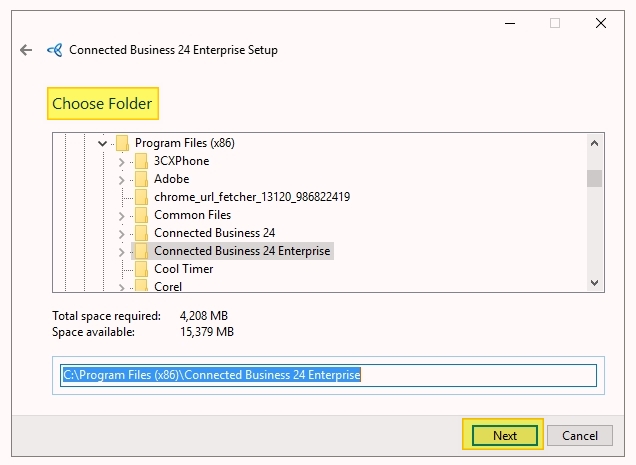
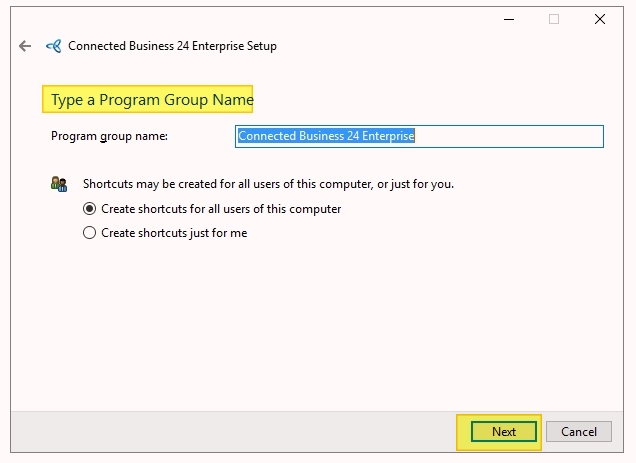
10. Enter the Program Group Name or leave the default program group name and click next to continue.
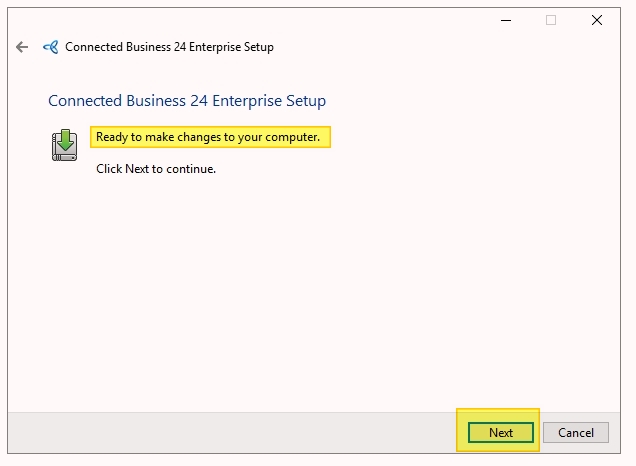
11. Click on next to confirm and continue the installation.
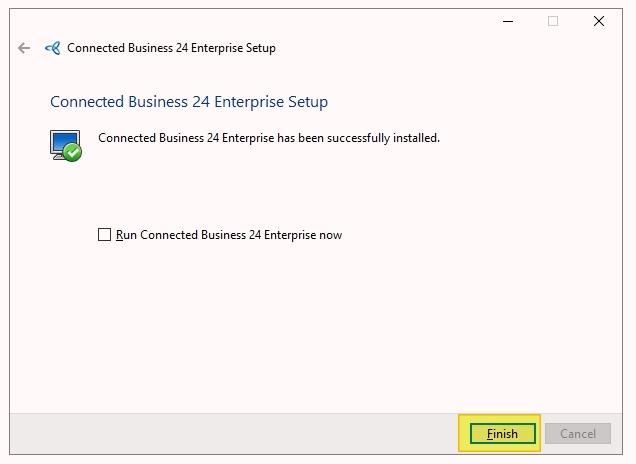
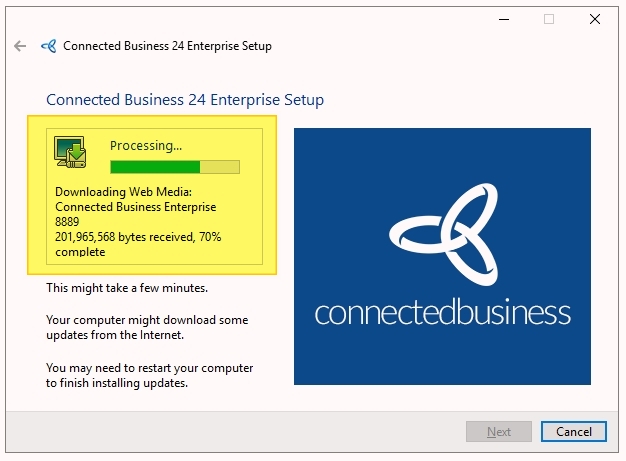
12. Downloading and Installing Connected Business Enterprise Edition.
13. Installation Complete after a few minutes of Installation