
How to run eShopCONNECTED service in Core Edition
- Run "Connected App Config 21" from your desktop shortcut or From the Windows Start Menu, key in APP to display the Connected App Config 21 program shortcut.
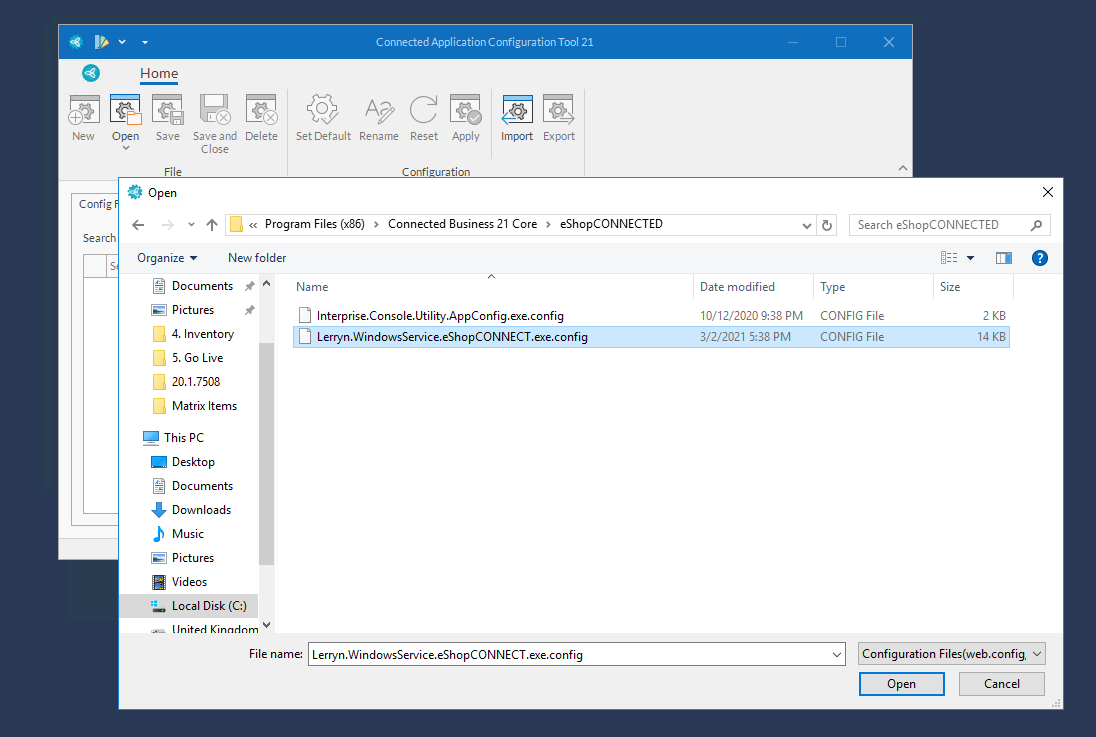
- Select Open to display the window explorer to select the Lerryn.WindowsService.eShopCONNECT.exe.config
- From the eShopCONNECTED folder of the Connected Business, select the Lerryn.WindowsService.eShopCONNECT.exe.config file.
4. Enter SQL server name and the company database (e.g usng default database)
SQL server name: (LocalDB)\MSSQLLocalDB
Database Name: ISSIDEMOUS(20.1) -- You may change the database name if you created a new one.

5. After checking all the information in the form, select Save and Close to save your changes
6. From the Windows Start Menu, key in Services to display the Windows Services program

7. Look for the eShopCONNECTED services (ConnectedBusinesseShopCONNECTED_20.1) > Right-click and select Properties.
8. Click Log On tab > Choose This account: option > Enter your Windows User Account and Password > Apply and Ok

9. Go back and right-click on the Service. Then, select Start.
Applicable Products
Connected Business Core Edition
