Upgrading Your Connected Business Database
This article will guide you through the process of upgrading your Connected Business database from your server. Upgrading ensures you have access to the latest features and bug fixes.
Important Note: Before proceeding with the upgrade, it is crucial to back up your existing database. This backup serves as a safety net in case of any unforeseen issues during the upgrade process.
Steps:
-
Back Up Your Connected Business Database:
- You cannot back up directly through the Connected Business Database Management Console (DBMC) at this time.
- Utilize Microsoft's SQL Server Management Studio (SSMS) or SQL Server Management Express to create a full backup of your live/production Connected Business database.
- Refer to Microsoft's documentation for detailed instructions on using SSMS for backups.
-
Install Connected Business Enterprise Edition:
- Ensure you have the Connected Business Enterprise Edition installer downloaded for the desired version you are upgrading to.
- Run the installer and follow the on-screen prompts to complete the installation on your server.
-
Run Connected Business DBMC:
- Locate and launch the Connected Business Database Management Console (DBMC) utility on your server.
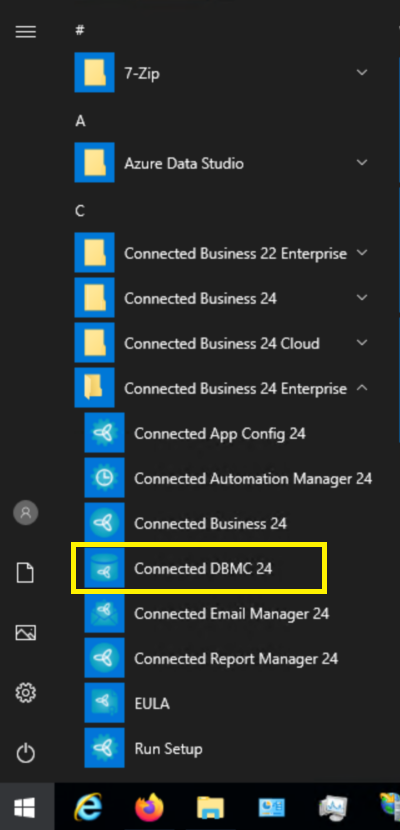
- Locate and launch the Connected Business Database Management Console (DBMC) utility on your server.
-
Connect DBMC to the Local SQL Server:
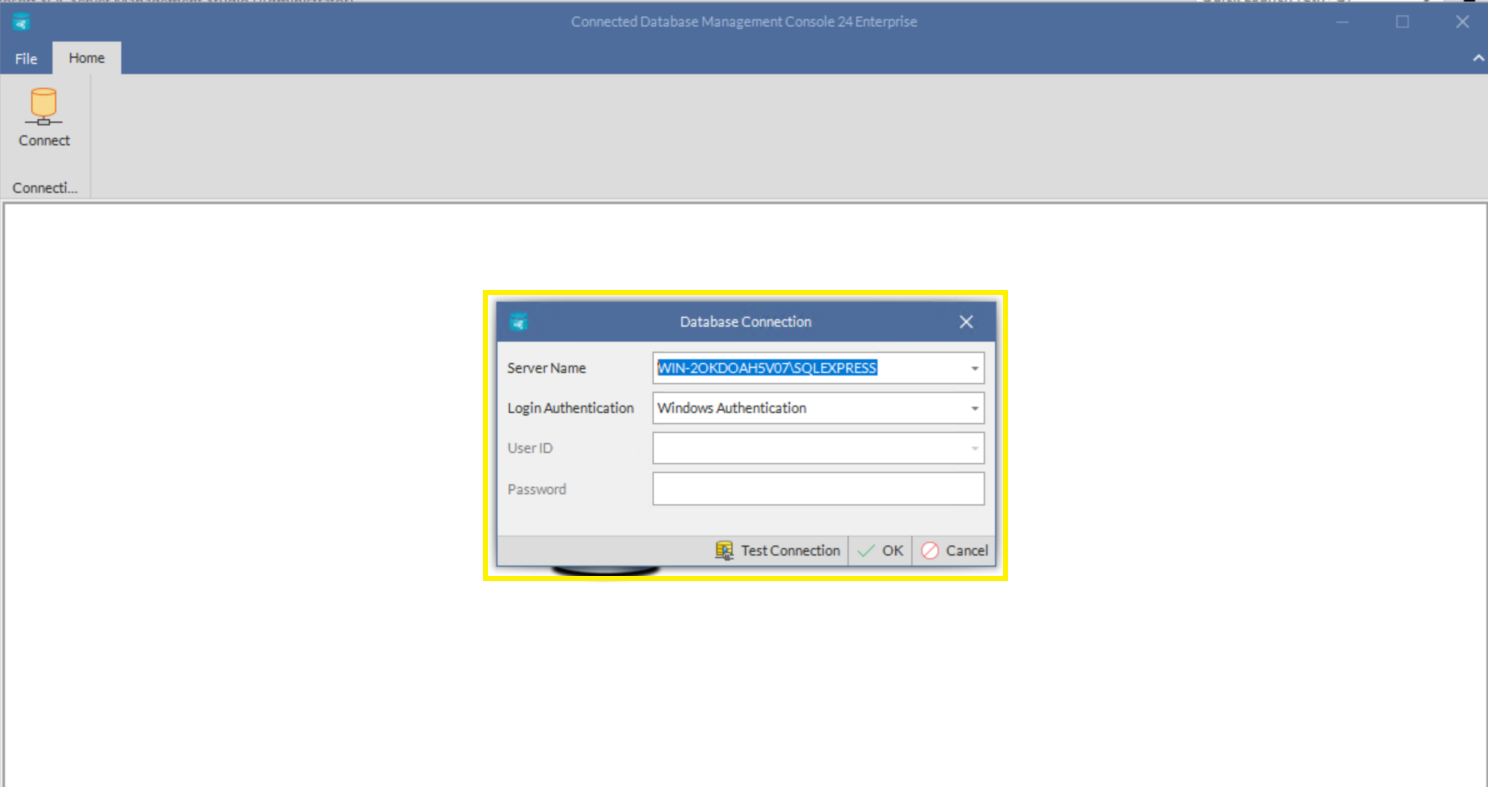
- Within the DBMC, establish a connection to the local SQL Server instance where your Connected Business database resides.
- Provide the necessary SQL Server login credentials to proceed.
-
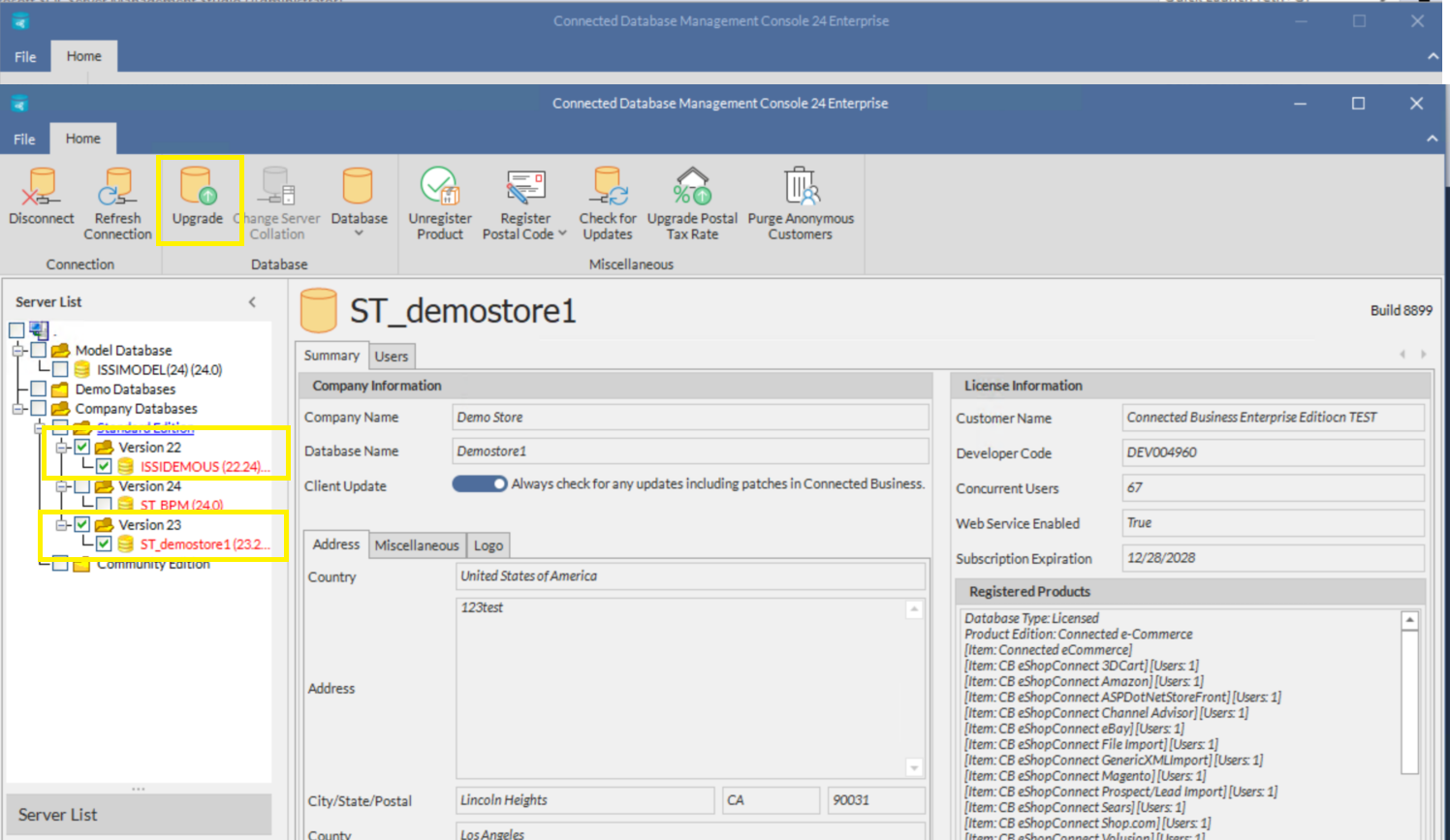
Select Database for Upgrade:
- Once connected, the DBMC will display a list of available databases.
- Identify the database you wish to upgrade from the list.