
Connected Business Email Cleanup
If you are using our email client to receive and send emails, it might take up too much space and increase the size of your database. The SQL script will clean up your email historical data and reduce the database size by deleting the data in tables such as ConnectMessageAttachment, ConnectMessageBody, ConnectMessageHeader, and ConnectMessageServerID. Please follow the steps below.
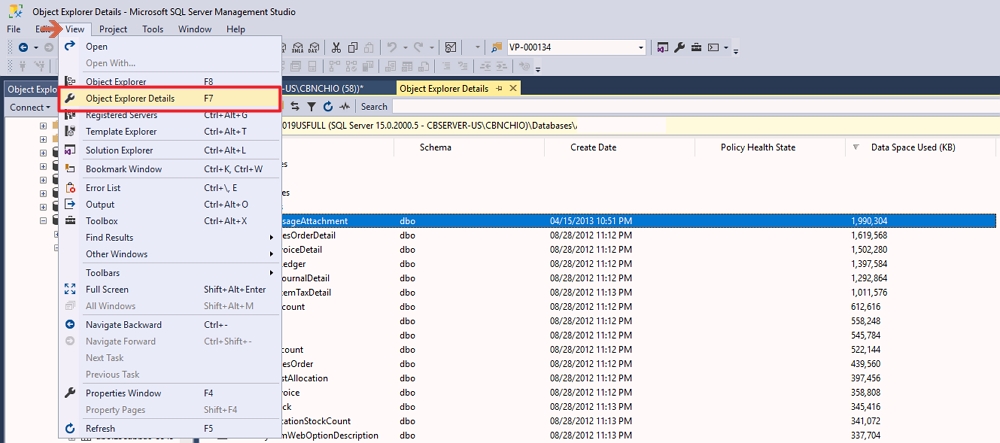
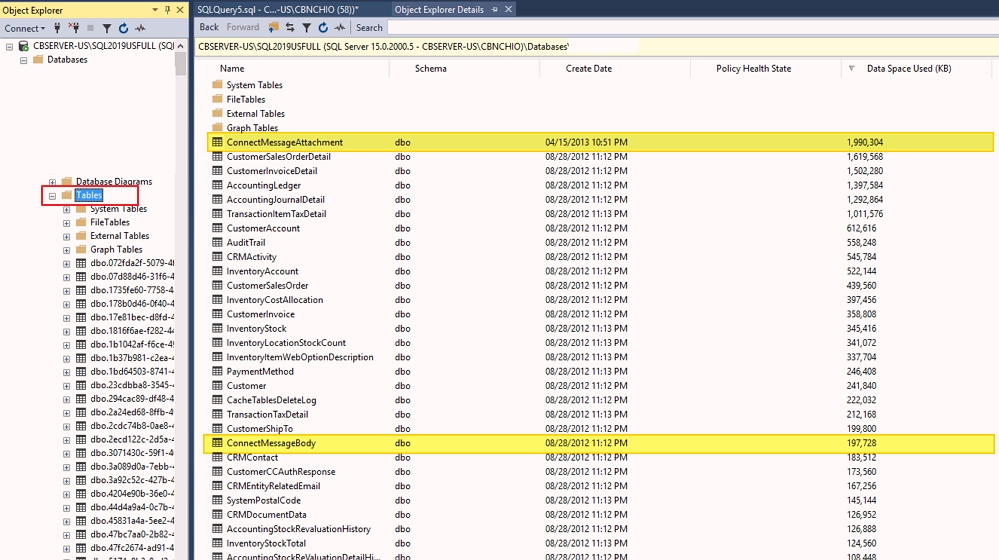
- Open Microsoft SQL Management Studio, click View, select “Object Explorer Details” and open your database table to verify if the email table ConnectMessageAttachment and ConnectMessageBody take up too much space in your database.
- Back-up the database first before running the email clean-up script.
How to backup database in SQL Management Studio.
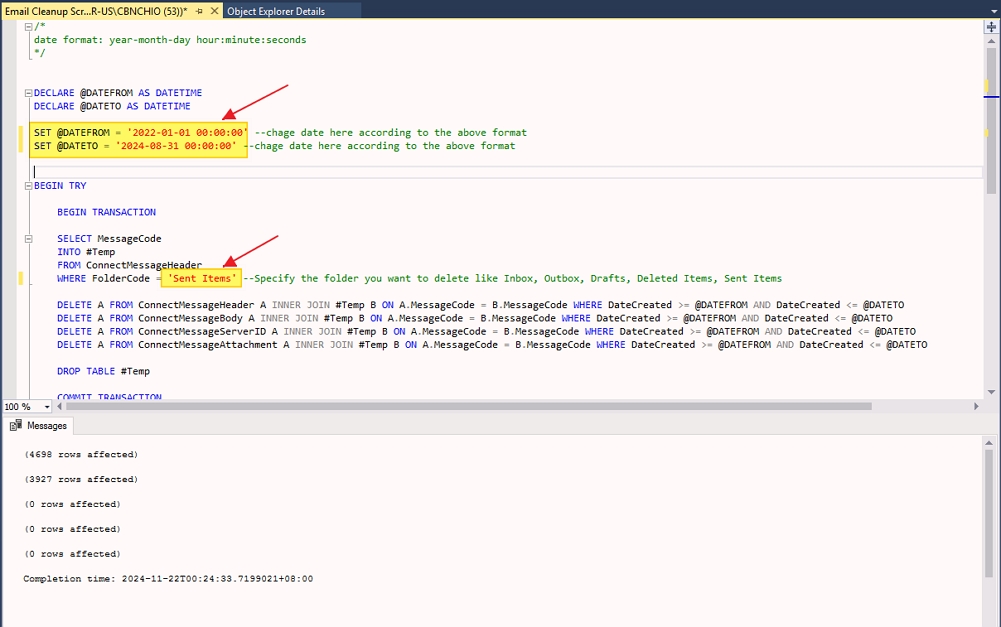
- Request or send a support ticket to the support portal for the email clean-up script. Run the script in SQL Management Studio and Make sure to supply the proper date and Folder Name based on the format stated in the script notes to purge the historical data so it does not remove everything. If you are unsure or have some questions about the script, contact the CB support team.
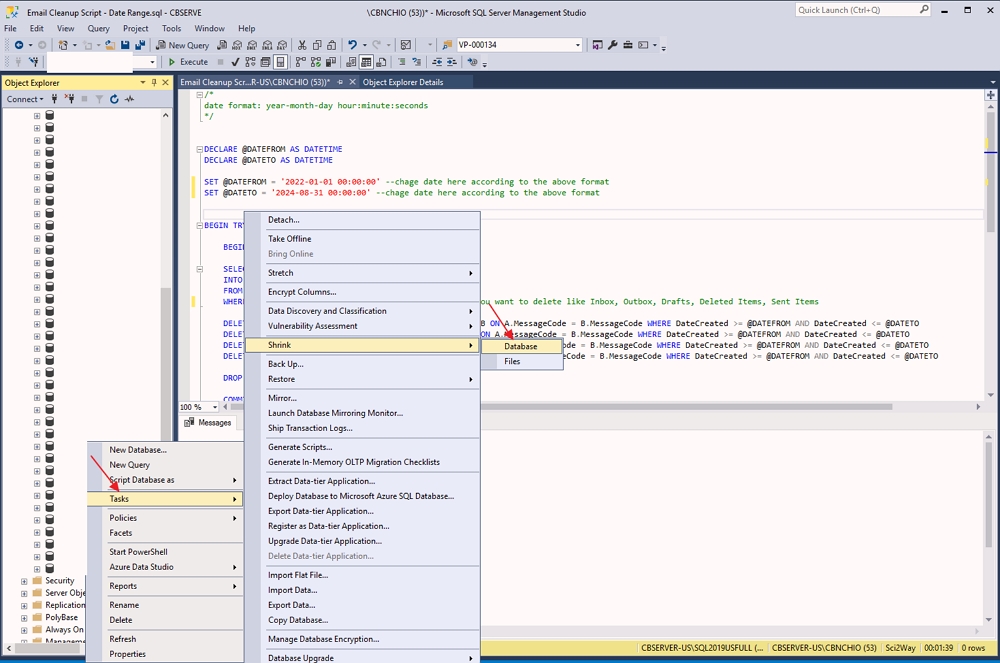
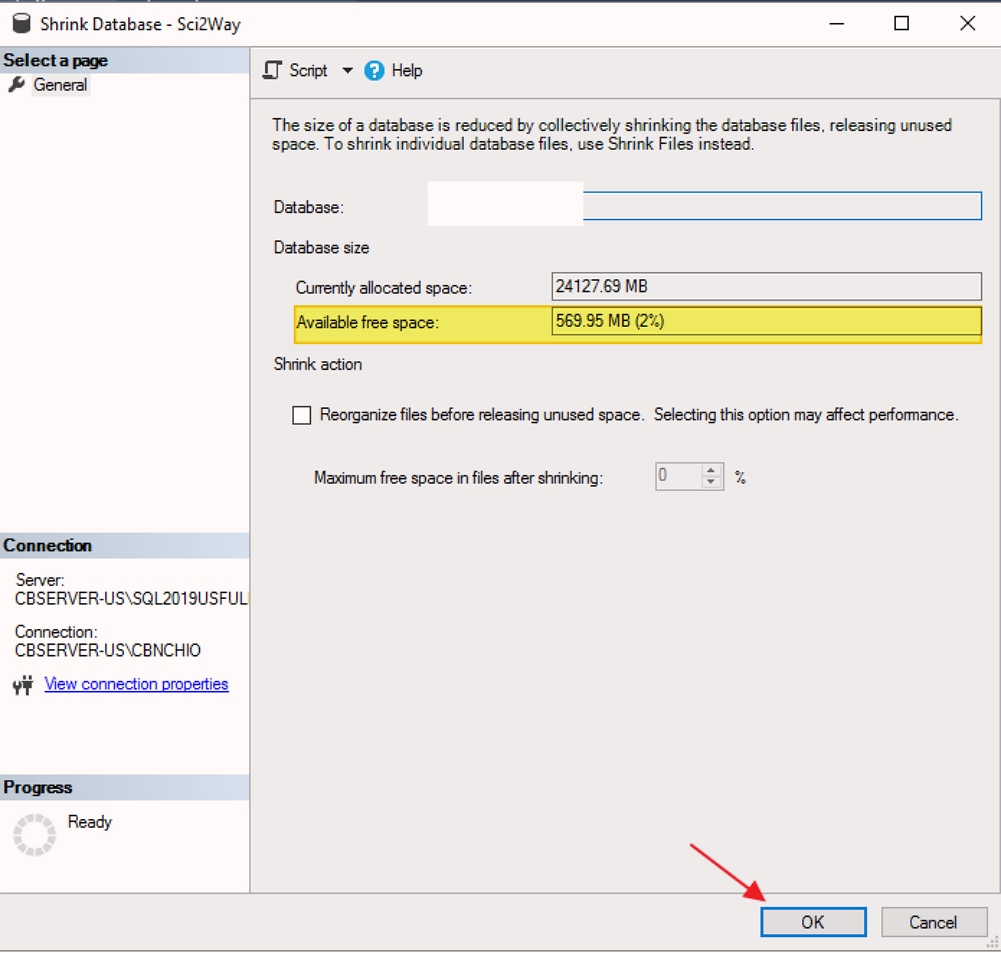
- Disconnect and reconnect to the SQL instance name to refresh and reflect the reduced table size, Shrink the database to help free up disk space and reduce the size of SQL Server database data and log files. Right-click on your database, click on Task>Shrink and select Database.
Applicable Versions
All Versions of Connected Business
