
Here’s a simple step-by-step guide to create a new company database in Connected Business:
How to Create a New Company Database
Prerequisites:
-
SQL Server (Express/Standard/Developer) is already installed
-
You have SQL admin credentials (sa or equivalent)
- Connected Business Server/Enterprise is installed
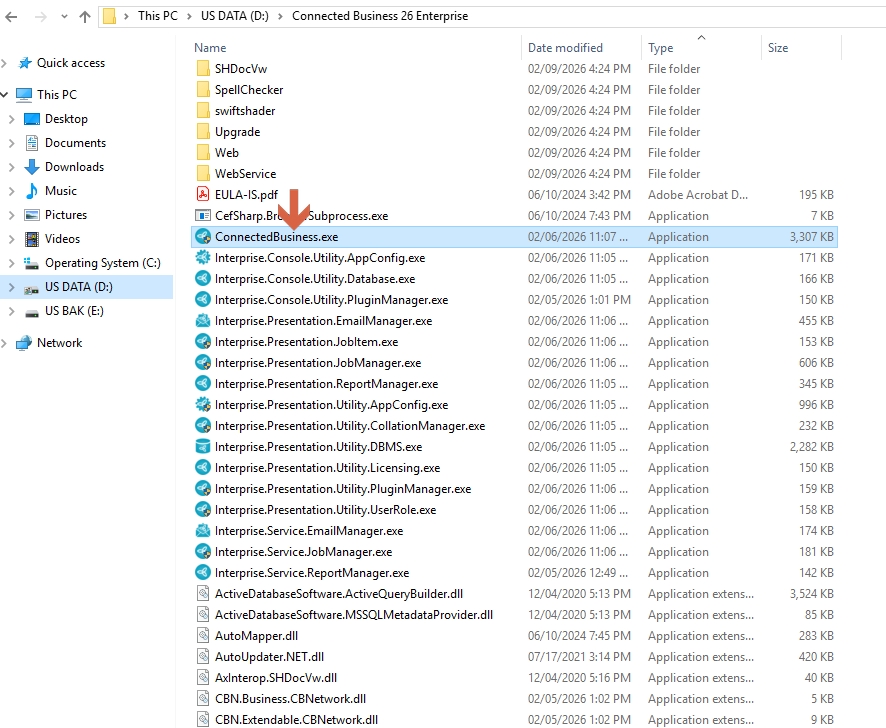
1. Open the Connected Business Server/Enterprise folder and run the Connected Business application inside the Enterprise folder.
Example path:C:\Program Files (x86)\Connected Business 26 Enterprise
Then double-click the Connected Business application file to launch it.
2. Click “Change” to set up the database connection.
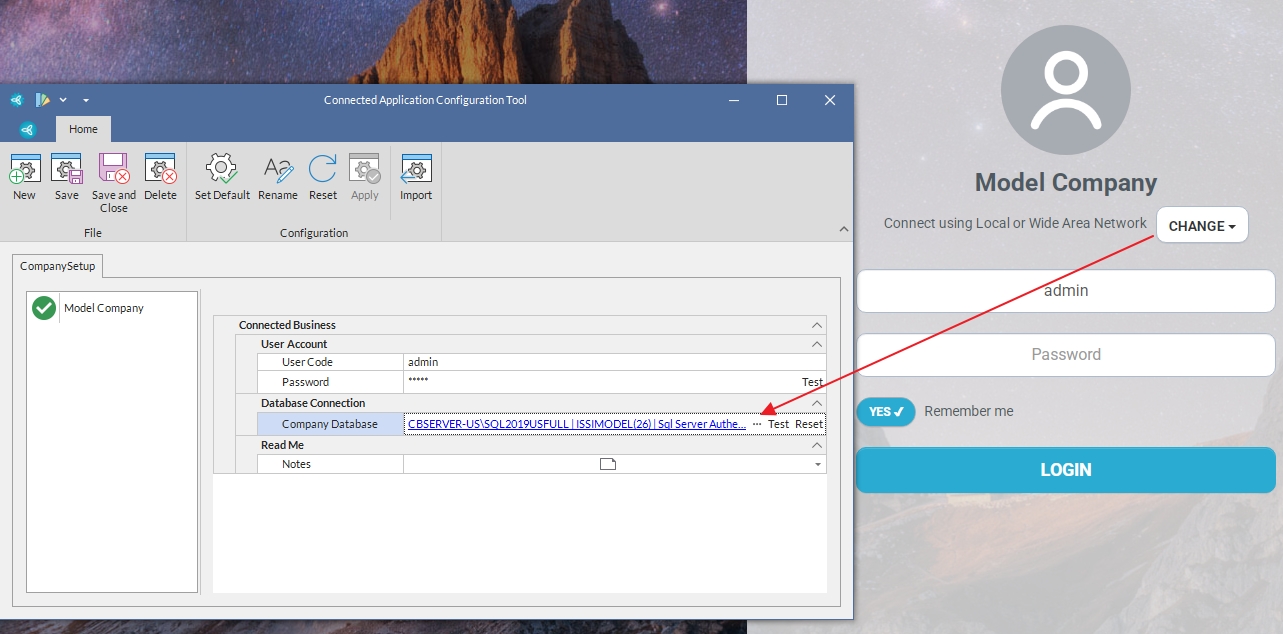
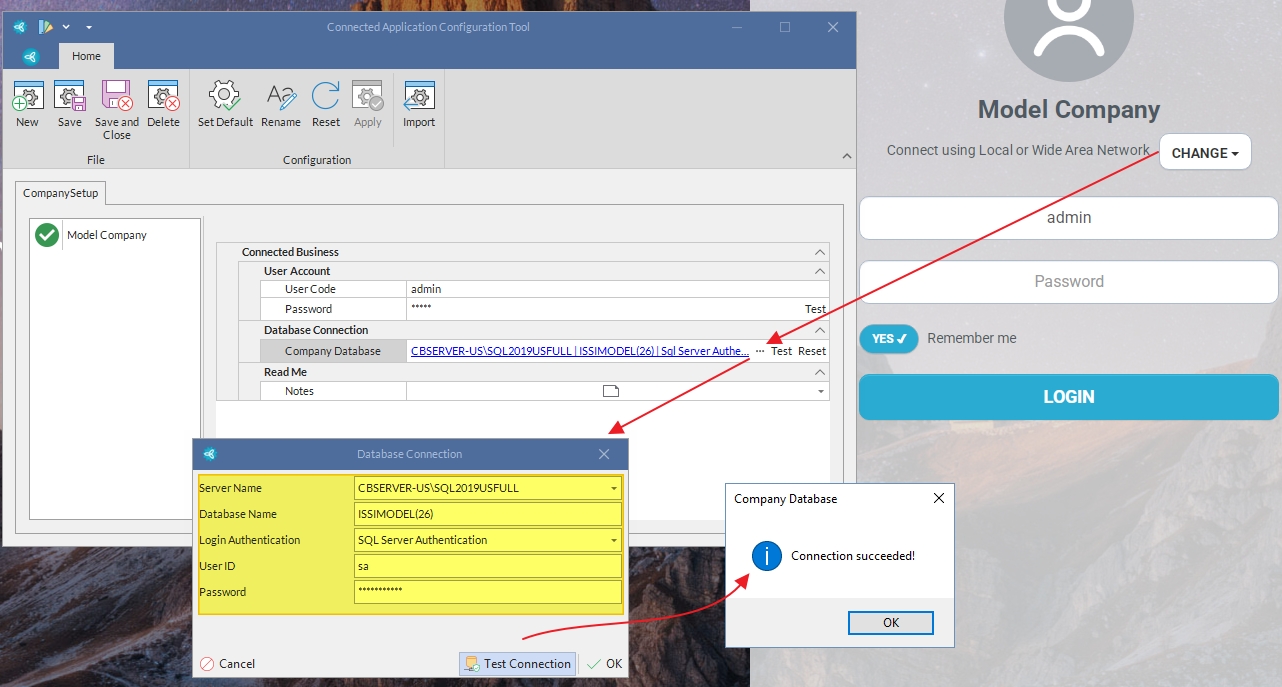
3. Enter the Database Connection Details
Enter the following information to connect to the ISSIMODEL database:
-
SQL Server Name: (Enter your SQL Server name)
-
Database Name:
ISSIMODEL(26)(The number may vary depending on the Connected Business version installed, e.g., ISSIMODEL(22), ISSIMODEL(25), ISSIMODEL(26), etc.) -
SQL User ID: (Enter SQL username)
-
SQL Password: (Enter SQL password)
After entering the required details, click Test Connect to check if you are connected to the database. If the connection is successful, you can click "OK" and may now log in using your Connected Business user credentials.
4. Log in to Connected Business using the default credentials:
-
Username: admin
-
Password: admin
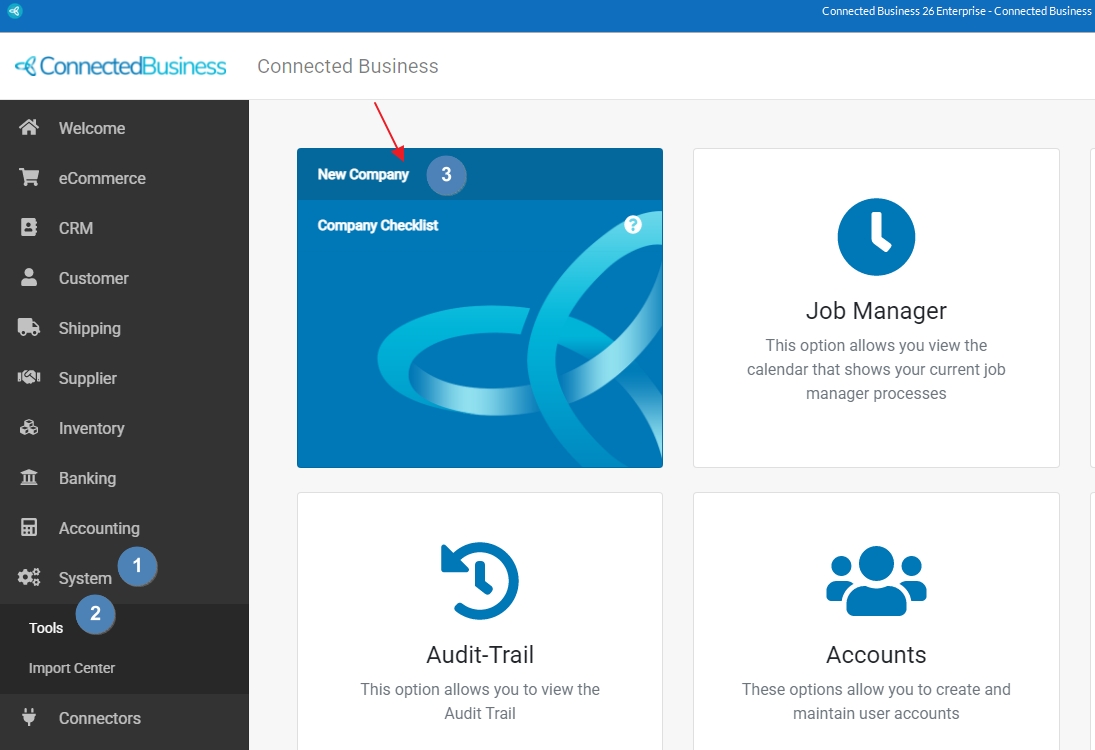
5. After logging in, go to the menu:
System → Tools → New Company
-
Click New Company to start the creation of a new company database.
6. Enter Company Details and Create Database
Fill in the following information:
-
Company Name – Enter the official company name
-
Database Name – Enter a name without spaces (e.g.,
CB_NewCompany) -
Address – Enter the company address
- Home Currency - Make sure to double-check the assigned currency.
-
This will be the default currency used throughout the database for all transactions, reports, and accounting entries.
-
After entering the details, click Create Database Now! to initialize the new company database.
Note: You will see an option called “Default Settings”.
-
Checked by default: If this option is checked, the system will automatically apply the default setup across all required modules, including the Chart of Accounts, tax settings, and other system defaults.
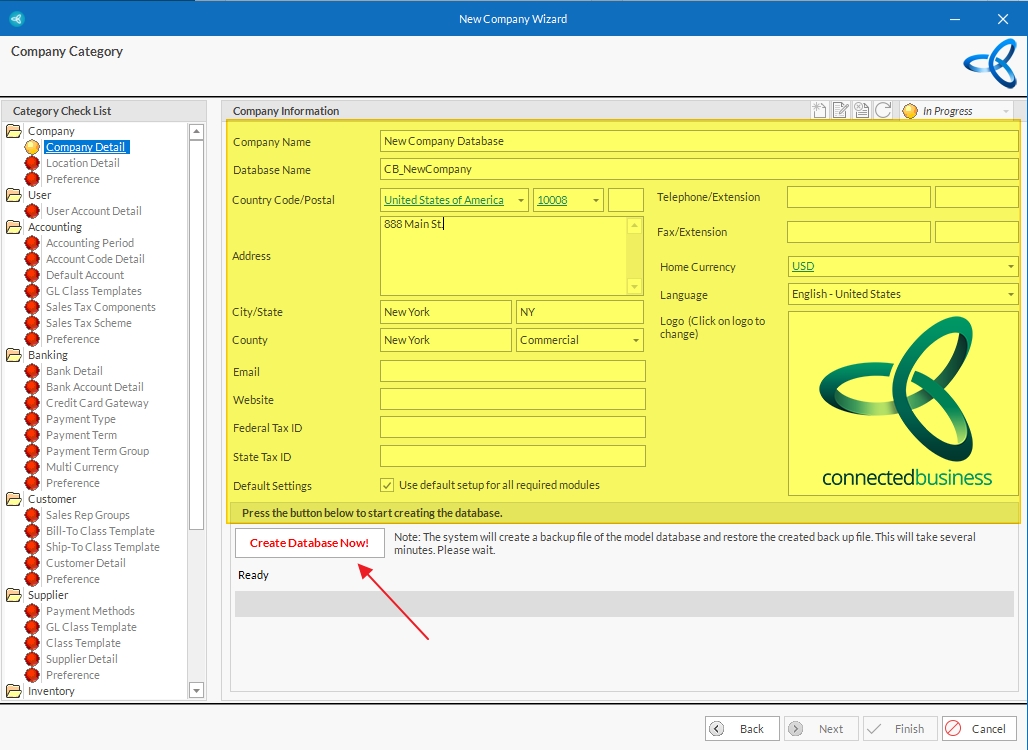
7. Once the database is successfully created, click Next to continue with the company setup and configuration process.
This will allow you to set up users, fiscal year, and other company-specific settings.
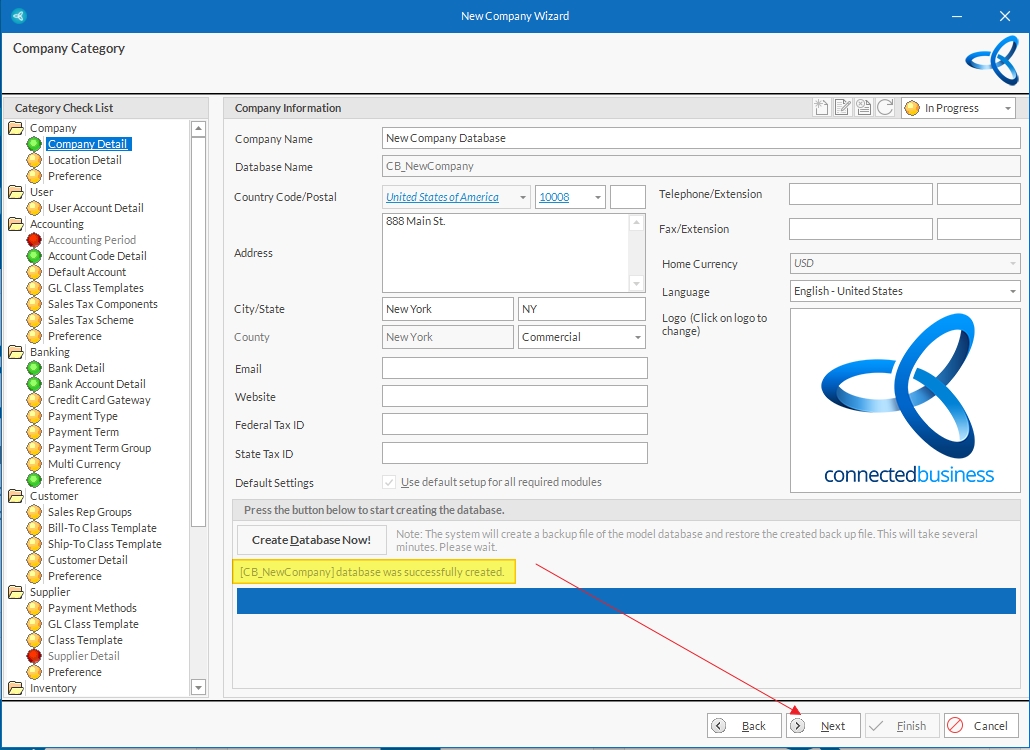
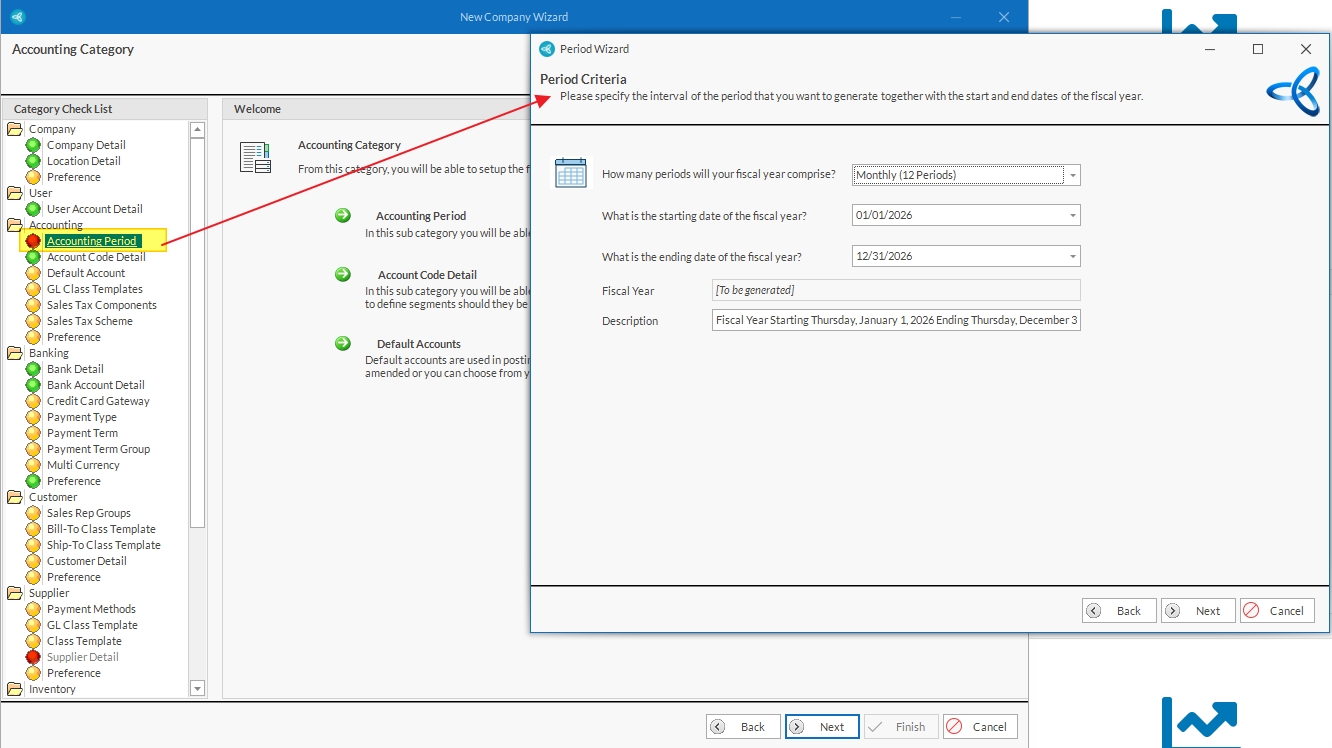
8. Follow the on-screen steps to complete the database setup.
When you reach the Accounting Period section, the system will ask for your fiscal year details:
-
Fiscal Year: 12 periods
-
Start Date: 01/01/2026 (January)
-
End Date: 12/31/2026 (December)
Enter the information and proceed to finalize the company setup.
Note: This ensures your accounting periods are correctly configured for reporting and transactions.
9. Once all required information is entered, you can:
-
Click Finish to register your new company database immediately
OR -
Click Next to continue setting up additional details, such as users, permissions, and modules
10. Follow the on-screen setup steps and click Next to accept the default configuration.
-
You can always go back and modify these settings after logging in to the database.
-
At the final step, click Finish to register the database and log in.
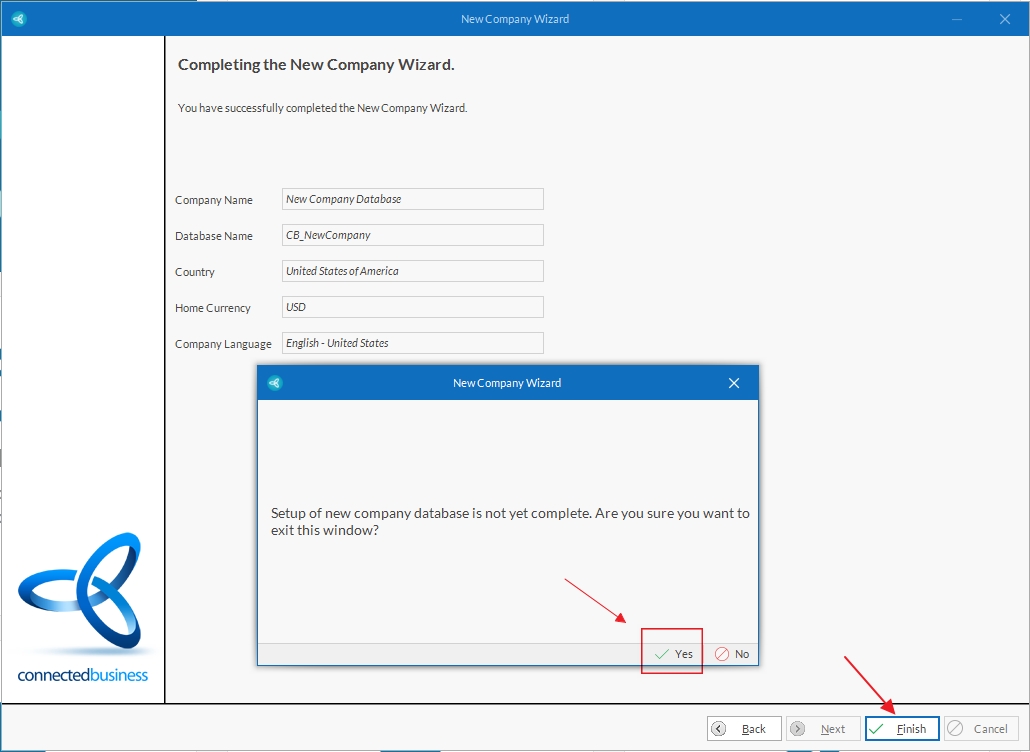
11. When prompted whether you want to log in to the database, click Yes.
-
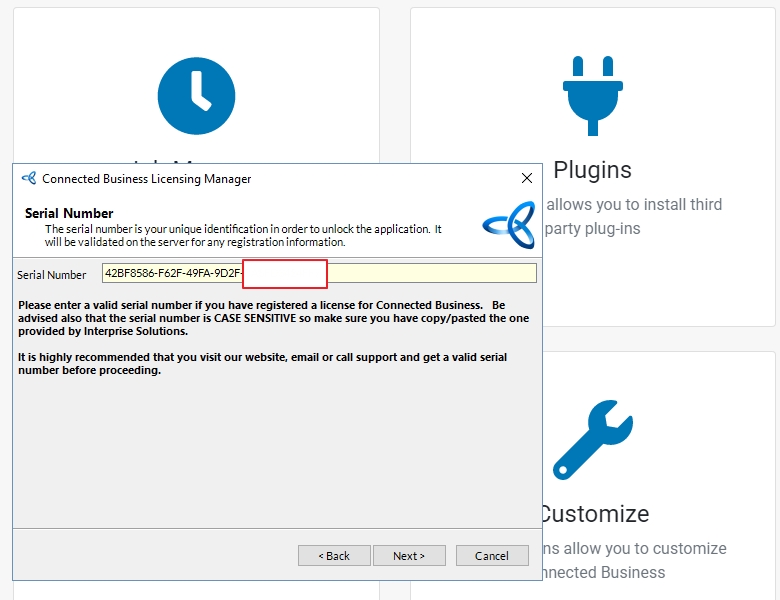
The system will then ask you to register your database.
-
Enter your License Serial Number and Confirmation Code to complete the registration.
You are now done creating a new company database
How to Connect to the Newly Created Database from Your Workstations
Prerequisites:
-
Connected Business Desktop is installed
-
SQL connection to the newly created database is available
1. Run Connected Business Desktop (or Apps).
2. On the login screen, click Change to open the Configuration Tool.
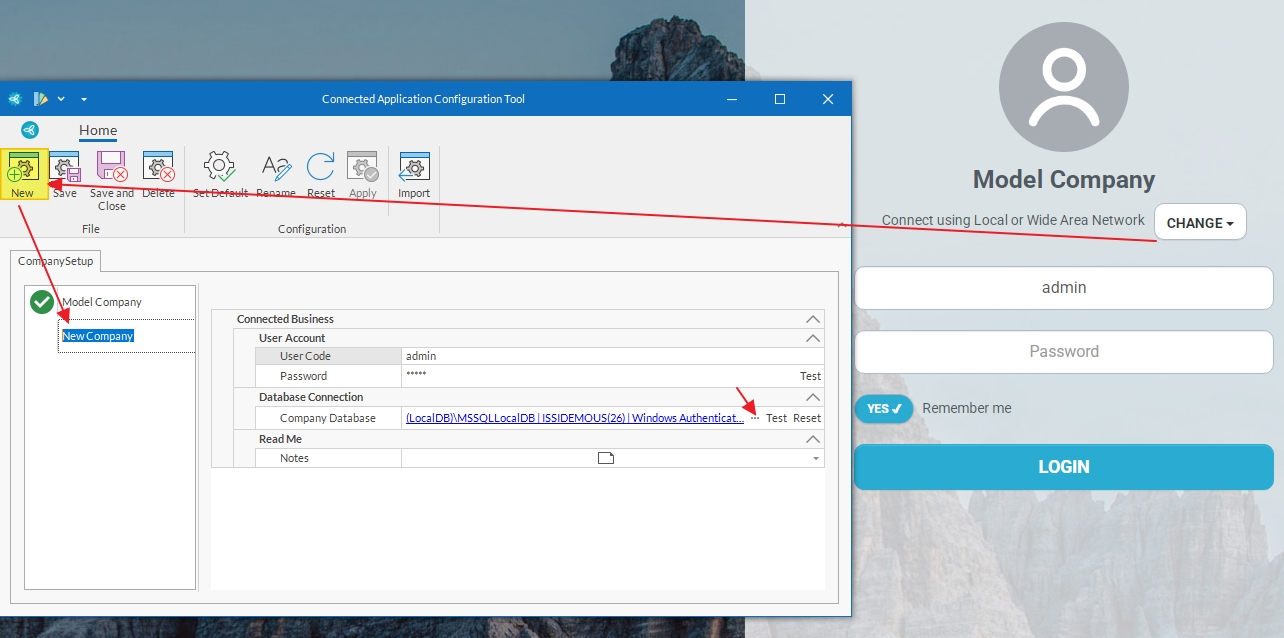
3. Click New to set up a database connection.
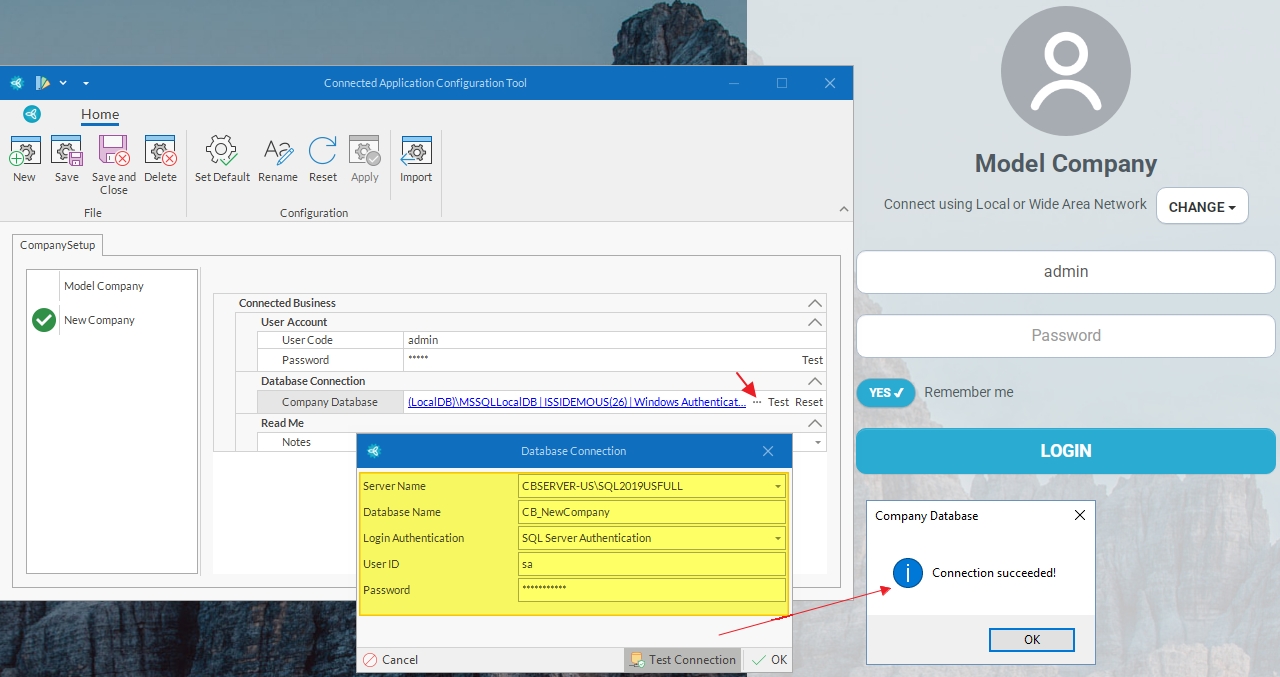
Enter the following details:
-
SQL Server Name: (Enter your SQL Server name)
-
Database Name: (Enter the newly created database name, e.g.,
CB_NewCompany) -
SQL User ID: (Enter SQL username)
-
SQL Password: (Enter SQL password)
Note: Make sure the connection is successfully established before proceeding.
4. After the connection is set up, return to the login screen and log in:
-
Username: admin
-
Password: admin
You are now connected to the newly created database and ready to start configuration or operations.
