How to install Connected Business Desktop (For Workstation) Edition
Note: Please ask your system administrator for the following database connection details before installation. You will need these after the setup:
-
SQL Server Name
-
Database Name
-
SQL Login Username and Password
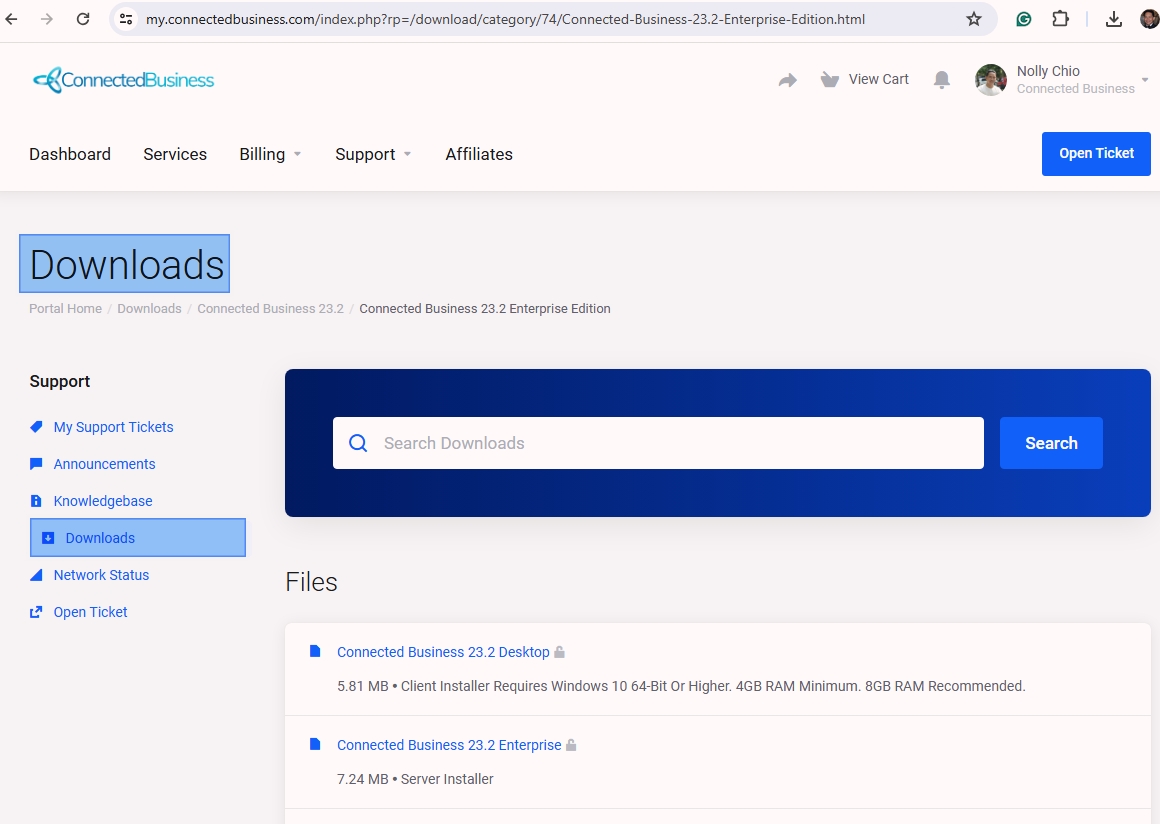
1. Download the Connected Business Desktop Edition installer from the Support Portal → Downloads section.
You may also click on the provided download link and log in using your account to proceed.
2. Once the download is complete, run the installer and follow the on-screen instructions.
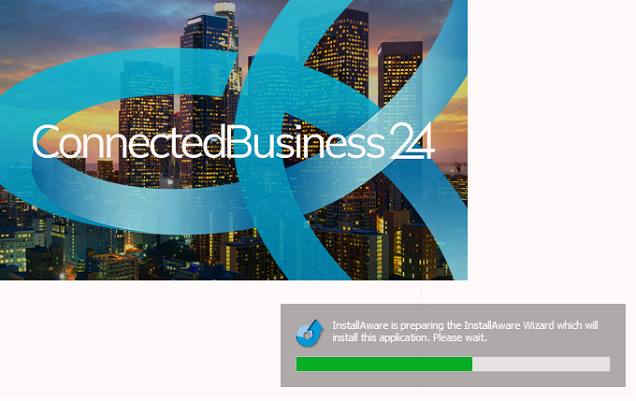
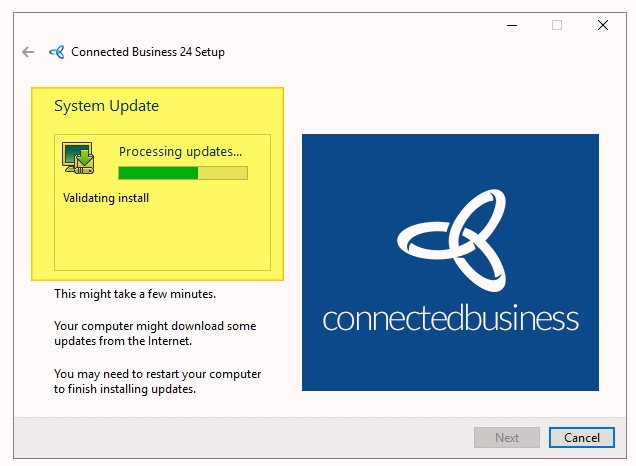
- Installer will check the needed requirements and perform a system update
- Installer downloading and automatically installing updates
- Continue the Installation after completing the system update
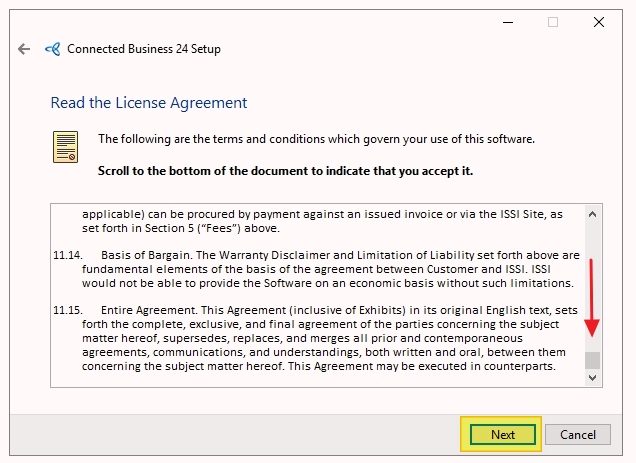
3. Scroll down to accept the License Agreement.
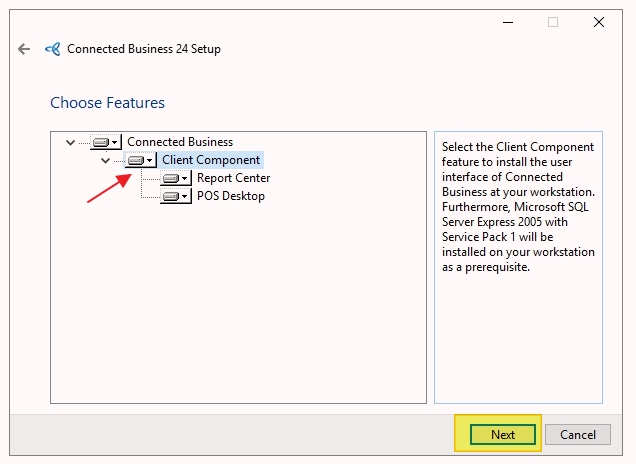
4. Select the Modules or Components that you want to install.
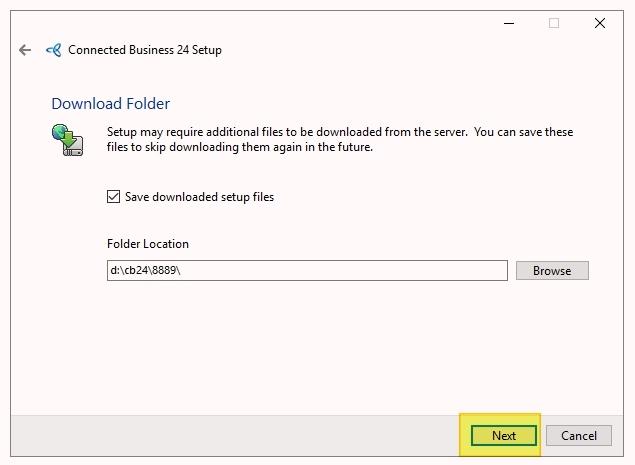
5. Check or uncheck to download the setup files.
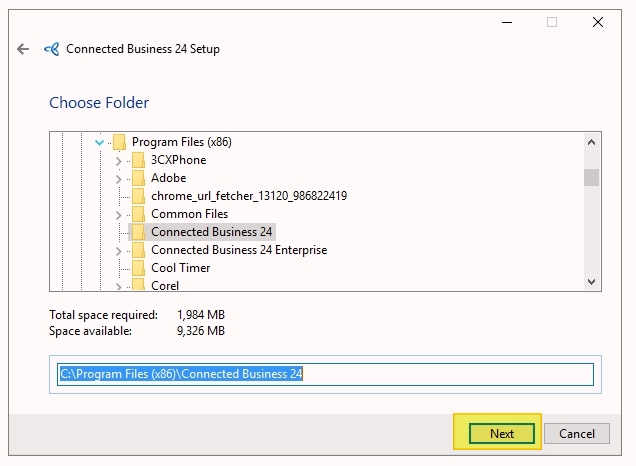
6. Enter the Directory or location where you want to install the Apps, you can leave the default location and click next to continue.
7. Enter the Program Group Name or leave the default program group name and click next to continue.
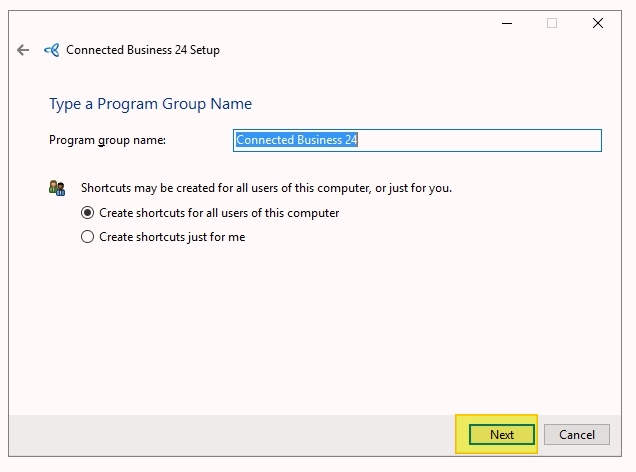
8. Click on next to confirm and continue the installation.
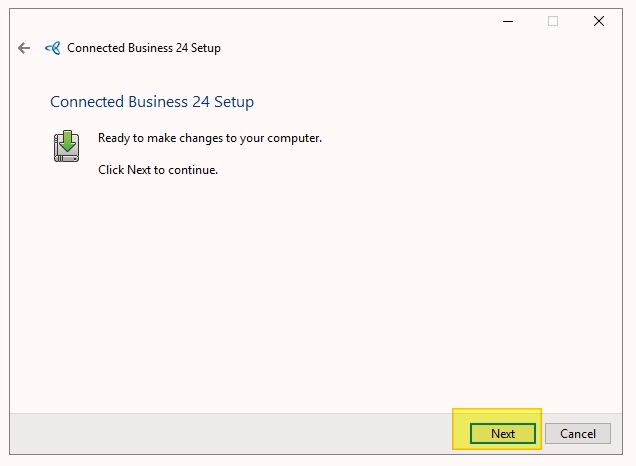
9. Downloading and Installing Connected Business Desktop Edition.
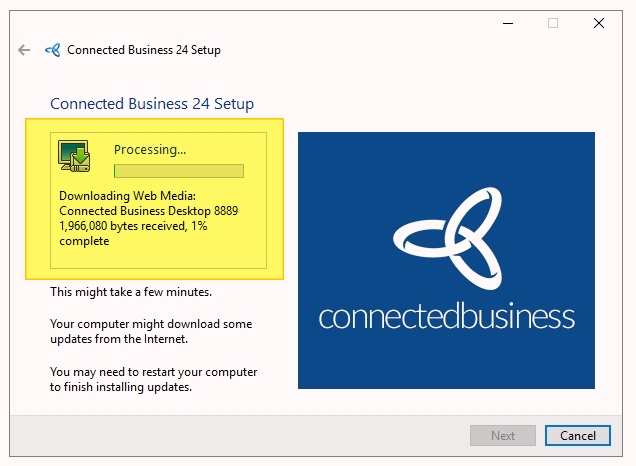
10. Wait for the installation to complete. This may take a few minutes depending on your system.
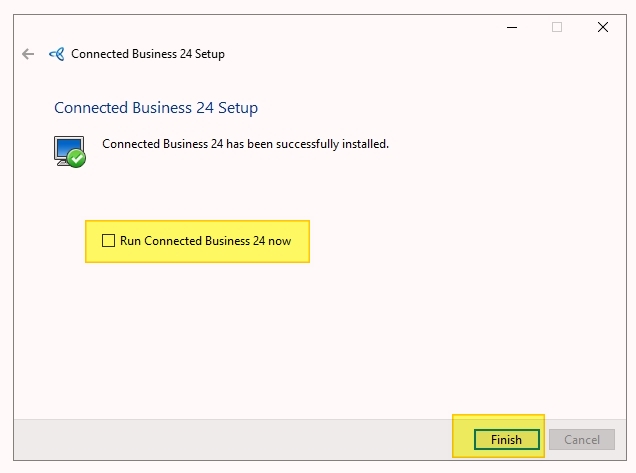
11. After installation, the installer will automatically create a Connected Business shortcut on your desktop.
You may also check "Run Connected Business now" to launch the application immediately.
11. Open the Connected Business Desktop application.
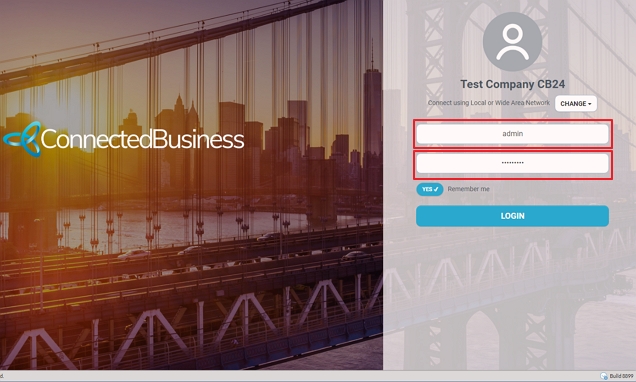
12. Log in using your Connected Business user credentials if a database connection has already been set up on the workstation.
13. If you are installing Connected Business on a new workstation, click Change and select Configure to create a new database connection.
-
Note: The database connection settings allow the Connected Business application to connect to the company database hosted on the server. Each workstation must have its own database connection configured before users can log in.
14. Enter the following database connection details:
-
SQL Server Name
-
Database Name
-
User ID
-
Password

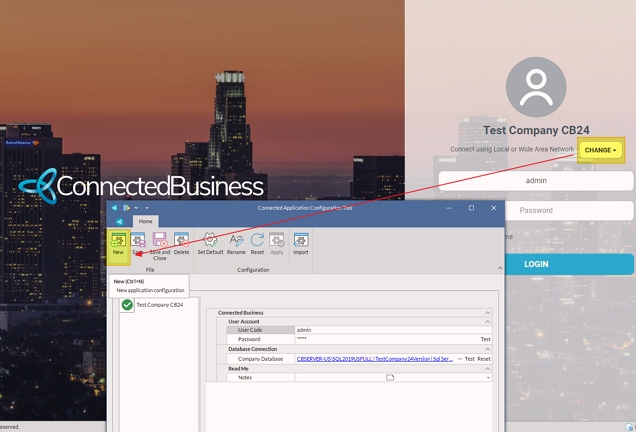
15. Click Save and Close, then proceed to log in using your Connected Business user account and password.